Nervecentre V9.0 Help for Users
Patient Status At A Glance (PSAAG)
PSAAG Patient Status At A Glance. A view of information relating to patients within a specific ward or area. provides a view of information relating to patients within a specific ward or area. You can use PSAAG to replace traditional whiteboards on wards. PSAAG is intended to be used by all clinical staff as a real time repository of patient locations within a ward or area. Nervecentre updates all read-only information displayed from patients' records. You can add and remove bed tags from PSAAG.
View PSAAG on a desktop only, from Bed Management > Bed Status.
PSAAG on a mobile
You can't do this on a mobile.
PSAAG on a desktop
 Viewing a ward from PSAAG Pages
-
From Bed Management > Bed Status, select Bed Status.
-
Select the ward you want to view.
Overview of the PSAAG ward view
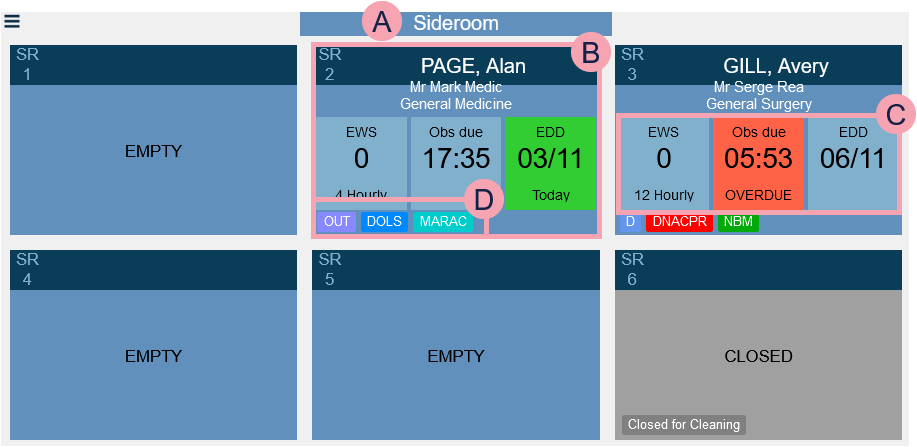
When you view a ward, you see a bar of ward information, and patient information displayed by bed space.
Overview of ward information

|
Beds |
|
|
Discharge |
Select an option to filter patient information.
|
|
Acuity |
The number of patients in this area with clinical note 'Acuity Acuity is the patient's health status, and is used to determine the correct level of care and staffing needed. Higher acuity patients need more care. Nervecentre doesn't calculate acuity. Clinicians set the acuity score in a clinical note.' set to each acuity level. |
|
Obs |
The number of patients with observations due, overdue, and with a high EWS Early Warning Score. A vital signs recording and scoring system used with adult patients. The scoring system is designed to identify and alert appropriate staff in the case of deteriorating patients.. Patients with a high EWS are RAG rated red or amber. |
Overview of patient information
|
|
Select to drag the room or bay to a different position. |
|
|
The name of the room or bay. |
|
|
A bed. Each occupied bed shows:
Each unoccupied bed shows:
|
|
|
Information about the patient's care. You can choose what to display. Select items from the information bar at the top of the PSAAG view, or, select from the bottom right corner of the page, and select up to three items.
|
|
|
Patient tags and bed tags. |


 Viewing information about a patient from PSAAG
You can view patient information, but you can't update patient information.
-
From Bed Management, select Bed Status.
-
Select the ward you want to view.
-
To display summaries of information on the main page, from the bottom-right corner, select , and select up to three items.
-
To view more information about the patient, select anywhere inside an occupied bed.
Viewing reserved beds
Reserved, unoccupied beds display RESERVED across the bed space.
Reserved, occupied beds display .
-
To view details of the bed reservation, select the bed space, then select Bed.
Adding and removing bed tags from PSAAG
When you select a 'closed' bed tag, the bed space shows grey. The bed also appears as closed from Manage Beds.
-
From Bed Management, select Bed Status.
-
Select the ward you want to view.
-
Find the bed you want to tag and select anywhere inside the bed.
-
Select Bed.
-
From , select or clear tags.
Unlocking PSAAG
Depending on your organisation and permissions, you can lock and unlock PSAAG. For example, if you have a screen showing PSAAG in an area shared with patients, you might want it to be locked most of the time.
When PSAAG is locked, you can't see information about a specific patient, for example, the patient's EWS Early Warning Score. A vital signs recording and scoring system used with adult patients. The scoring system is designed to identify and alert appropriate staff in the case of deteriorating patients., or if they have an observations due. Also, depending on your organisation, PSAAG might show pseudonyms for patients when locked or unlocked.
To unlock PSAAG:
-
From Bed Management > Bed Status, select a ward.
-
From the bottom right, select .
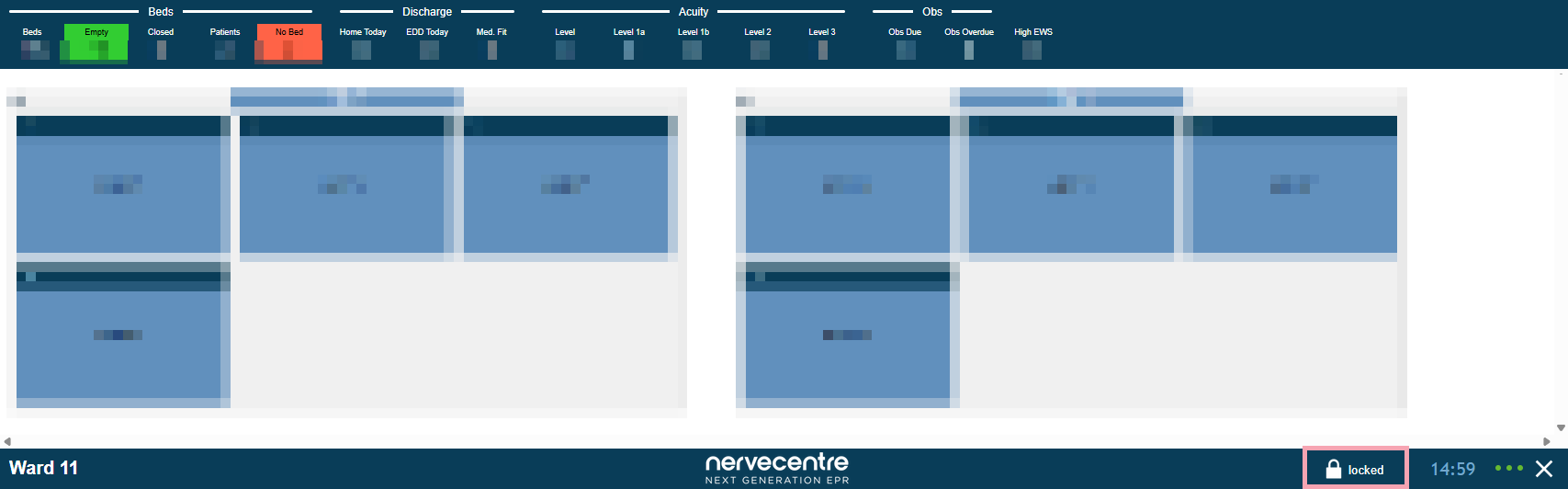
-
Enter your username and password.
If a message appears saying you can't unlock the screen, contact your organisation's system administrator.
-
Select Unlock.
PSAAG is now unlocked.
-
To lock PSAAG, from the bottom right, select .
Did you find this article helpful? Yes No
Sorry about that. Our help is a work in progress and we welcome any feedback.
Why wasn't this helpful? Please select one reason:
Great!
Thanks for taking the time to give us some feedback.